OpenPGP card on Windows: how-to guide
Every command on this page was run with the SmartPGP applet on a JavaCard, on Windows 11 joined to an Active Directory domain with an enterprise CA, and Gpg4win 5.1. The default SmartPGP PINs are 123456 (PIN) and 12345678 (admin PIN): change them before real use. See the product page to choose between the minidriver and the CSP.
Skip this step with a genuine OpenPGP card. SmartPGP is a free OpenPGP card applet; load it with GlobalPlatformPro. Pick the CAP that matches the JavaCard version of your card — the 3.0.1 build runs on most cards. Give the instance an AID with your own serial number (here 00000001):
$ java -jar gp.jar --install SmartPGPApplet-javacard-3.0.1-rsa_up_to_2048.cap --create D276000124010304AFAF000000010000
$ java -jar gp.jar --list
APP: D276000124010304AFAF000000010000 (SELECTABLE)
PKG: D27600012401 (LOADED)
Room for an Active Directory certificate
The standard SmartPGP build accepts certificates up to 1 KB. A certificate from an AD CS enterprise CA is bigger — 1.5 to 2 KB with its LDAP CRL and AIA URLs and the SID extension — and is refused when written. Two ways out:
- Rebuild SmartPGP with a bigger certificate (needs a card with a few KB of free EEPROM): in
Constants.java, raise the max length of cardholder certificate inEXTENDED_CAPABILITIESto0x0800. The certificate travels through the RAM buffer of the applet, about 1 KB: stage it in a persistent buffer instead. Also enable extended APDUs (patches/support_extended_length.patchof the SmartPGP repository), which the CSP needs. Build with JDK 11 andant, like the SmartPGP CI. - Shrink the certificate: a CA with short HTTP CRL and AIA URLs, or a template without the optional extensions. Check the size of a test certificate first.
Windows chooses the driver from the ATR of the card. Genuine OpenPGP cards v2 and v3 are registered by the installers; a JavaCard keeps its own ATR. Read it with the card inserted:
C:\> certutil -scinfo
---    ATR:
        3b 9c 95 80 81 1f 03 90  67 46 4a 01 00 41 06 f2
        72 7e 00 57
Then register it for one of the two drivers, from an elevated command prompt (replace the ATR with yours, the mask has the same length):
For the minidriver
set K=HKLM\SOFTWARE\Microsoft\Cryptography\Calais\SmartCards\SmartPGP (OpenPGP minidriver)
reg add "%K%" /v ATR /t REG_BINARY /d 3B9C9580811F039067464A01004106F2727E0057
reg add "%K%" /v ATRMask /t REG_BINARY /d FFFFFFFFFFFFFFFFFFFFFFFFFFFFFFFFFFFFFFFF
reg add "%K%" /v "Crypto Provider" /d "Microsoft Base Smart Card Crypto Provider"
reg add "%K%" /v "Smart Card Key Storage Provider" /d "Microsoft Smart Card Key Storage Provider"
reg add "%K%" /v 80000001 /d openpgpmdrv64.dll
For the CSP
set K=HKLM\SOFTWARE\Microsoft\Cryptography\Calais\SmartCards\SmartPGP (OpenPGP CSP)
reg add "%K%" /v ATR /t REG_BINARY /d 3B9C9580811F039067464A01004106F2727E0057
reg add "%K%" /v ATRMask /t REG_BINARY /d FFFFFFFFFFFFFFFFFFFFFFFFFFFFFFFFFFFFFFFF
reg add "%K%" /v "Crypto Provider" /d "OpenPGP CSP"
reg add "%K%" /v "Smart Card Key Storage Provider" /d "OpenPGP KSP"
Remove and insert the card: certutil -scinfo now shows Card: SmartPGP (OpenPGP minidriver) or (OpenPGP CSP). For 32-bit applications, add the same key under HKLM\SOFTWARE\WOW6432Node (with openpgpmdrv32.dll for the minidriver).
The minidriver is read-only: the key and the certificate are made with Gpg4win. Windows uses the authentication key (OPENPGP.3) and the certificate stored for it.
Generate the key on the card (admin PIN)
C:\> gpg-card generate --force --algo=rsa2048 OPENPGP.3Make a certificate request signed by the card (PIN)
C:\> gpgsm --gen-key -o req.pem
Please select what kind of key you want:
   (3) Existing key from card
Your selection? 3
   (1) 48AE90BEE217F28FF06032D5BBDC55E7B2C437AB OPENPGP.3 rsa2048 (sign,auth)
Your selection? 1
Possible actions for a RSA key:
   (2) sign
Your selection? 2
Enter the X.509 subject name: CN=TestUser
Create self-signed certificate? (y/N) n
Proceed with creation? (y/N) y
Have it issued by the domain CA
C:\> certreq -submit -config CA-SERVER\CA-NAME -attrib CertificateTemplate:SmartcardLogon req.pem cert.cer
Certificate retrieved(Issued) Issued
C:\> certutil -decode cert.cer cert.der
The CA builds the subject and the UPN from the account of the requester: run certreq as the user, or use an enrollment agent.
Write the certificate on the card (admin PIN)
C:\> gpg-card
gpg/card> writecert OPENPGP.3 < cert.der
gpg/card> quit
C:\> gpgconf --kill scdaemon
gpg-card reads the file itself: type the < inside its prompt, not on the Windows command line. Stopping scdaemon releases the card for Windows.
Allow signature keys for logon
The minidriver shows the certificate on the signature container. Enable Computer Configuration › Administrative Templates › Windows Components › Smart Card › Allow signature keys valid for Logon, or:
reg add HKLM\SOFTWARE\Policies\Microsoft\Windows\SmartCardCredentialProvider /v AllowSignatureOnlyKeys /t REG_DWORD /d 1Check with certutil -scinfo: Public key matching test succeeded and Smart Card Logon: Chain validates.
A template with a signature key
The Smartcard Logon template asks for a key that signs and decrypts. On an OpenPGP card each key has one use, and SmartPGP cannot swap them (no MSE): the CSP offers the authentication key, which signs only. On the CA, duplicate Smartcard Logon (certtmpl.msc), and in the copy:
- Request Handling: purpose Signature
- Cryptography: let the requester choose the provider, or list OpenPGP CSP
- Security: Enroll for the users
Then publish it on the CA (certsrv.msc › Certificate Templates › New › Certificate Template to Issue). The demo uses a copy named Smartcard Logon (signature key).
Enroll
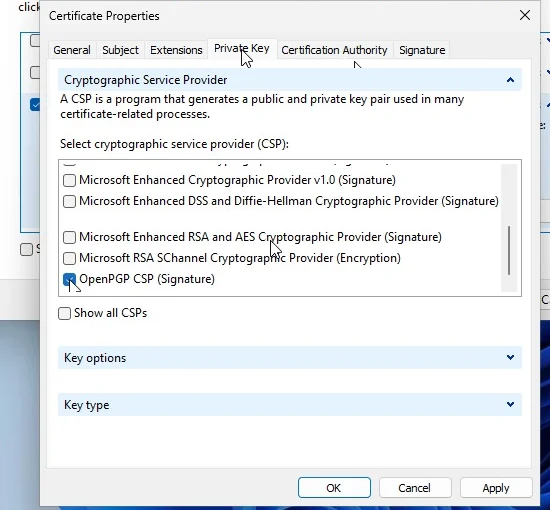
certmgr.msc› Personal › All Tasks › Request New Certificate › Next › Next- Tick the signature-key template, open Details › Properties › Private Key › Cryptographic Service Provider
- Untick the default provider and tick OpenPGP CSP (Signature), at the bottom of the list
- Enroll: the CSP asks for the key slot — pick Authentication
- Admin PIN: the key is generated on the card; PIN: the request is signed; the certificate is written on the card
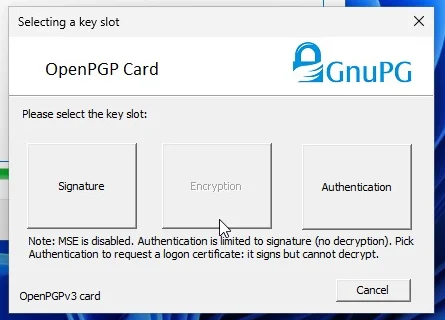
On Windows 11 the KSP (OpenPGP KSP) is used first; the CSP remains for older applications. The Signature slot works too, but GnuPG then asks for the PIN at every signature (Signature PIN: forced).
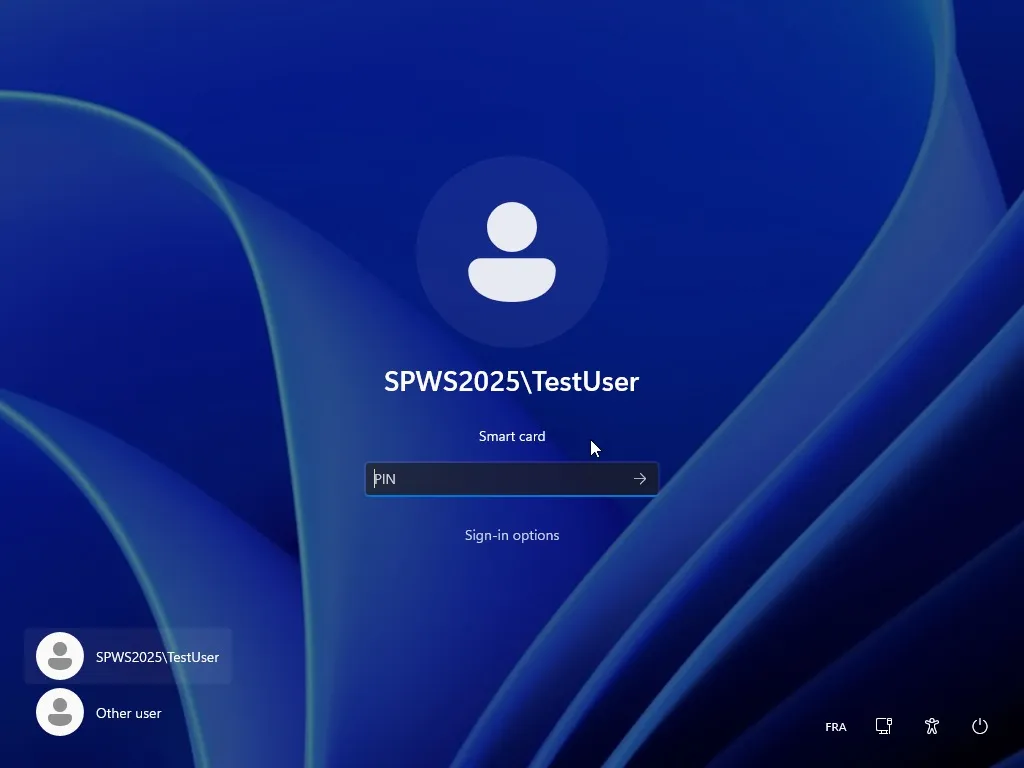
Lock the session (Win+L), choose Sign-in options › Smart card and type the PIN. The domain controller checks the certificate (Kerberos PKINIT): it needs its own Kerberos Authentication certificate and the CA in the NTAuth store, as for any smart card logon.
For a local account, outside a domain, use EIDAuthenticate with any certificate on the card.
| Symptom | Cause and fix |
|---|---|
certutil -scinfo shows no driver, or another card name | The ATR is not registered, or registered for another driver: step 2. Remove and insert the card afterwards. |
gpg-card writecert fails, or the card answers 6700 / 6A84 | The certificate is bigger than the applet accepts: step 1, Room for an Active Directory certificate. |
| “No valid certificates were found on this smart card” | Minidriver: the Allow signature keys valid for Logon policy is not set, or the certificate is not on OPENPGP.3. Lock the session again after changing the policy. |
| The CSP only offers the Encryption slot | The template asks for a sign + decrypt key: use a template whose purpose is Signature (step 4). |
| Windows cannot reach the card while GnuPG is running | scdaemon keeps the card open: gpgconf --kill scdaemon. |
| The certificate is issued but “cannot be installed” | The certificate does not fit on the card (step 1), or the admin PIN was refused. |
| A PIN is blocked | The PIN is unblocked with the admin PIN: gpg-card unblock. Without the admin PIN, reinstall the applet (step 1). |