GIDS smart card how-to guide
Every command on this page was run on a real JavaCard with GIDS Applet 1.3, on Windows 11 with no driver installed and on Ubuntu 24.04 with OpenSC 0.25. Replace 123456 with your own PIN.
Load GidsApplet.cap on the card with GlobalPlatformPro (Java 11 or later; the video uses the alias gp for java -jar gp.jar). Most development cards use the default GlobalPlatform test keys:
$ java -jar gp.jar --list
ISD: A000000003000000 (OP_READY)

$ java -jar gp.jar --install GidsApplet.cap
GidsApplet.cap loaded: com.mysmartlogon.gidsApplet A00000039742544659

$ java -jar gp.jar --list
APP: A000000397425446590201 (SELECTABLE)
PKG: A00000039742544659 (LOADED)--key, --emv…): see the GlobalPlatformPro documentation. A card manager accepts only a few failed authentications (often 10) before locking the card for good: stop after the first “wrong key” and ask the card vendor.
A freshly installed applet has no PIN, no admin key and no file system. The initialization creates them, once. Until then Windows sees the card but cannot use it.
On Windows: the GIDS Initialization Tool
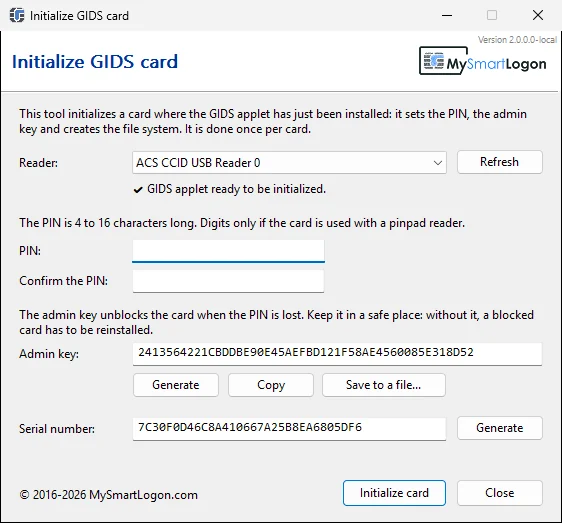
- Download InitializeGids.exe (x86, x64 or ARM64, signed, no installation).
- The reader whose card waits for its initialization is selected.
- Type the PIN twice: 4 to 16 characters, digits only for a pinpad reader.
- Copy or save the admin key: it is the only way to unblock the PIN.
- Click Initialize card.
The same from a script — without --admin-key, a random key is generated and printed:
> InitializeGids.exe --pin 123456 | more
Reader: ACS CCID USB Reader 0
Serial number: 21E82F5C52D7109B43179808C1675B3A
Admin key: <48 hexadecimal characters, keep them>
The card has been initialized.
On Linux and macOS: gids-tool
$ gids-tool --initialize --pin 123456 --admin-key 0123456789ABCDEF0123456789ABCDEF0123456789ABCDEFCheck the result: certutil -scinfo shows the card as Identity Device (Microsoft Generic Profile), pkcs15-tool -D as GIDS card with an initialized PIN and 3 tries left.
The key pair is generated on the card and never leaves it. Windows does it with its own driver: the usual Windows Security prompt asks for the PIN.
Domain accounts: enroll from the Active Directory CA
- As the user, open
certmgr.msc› Personal › All Tasks › Request New Certificate, then Next twice (Active Directory Enrollment Policy). - Check the Smartcard Logon template — or your own copy of it — and click Enroll.
- Windows asks for the PIN of the card: the key pair is generated on the card, the domain CA signs the certificate, Windows writes it on the card.
- Lock the session (Win+L): the sign-in screen shows the smart card with the account's UPN. Type the PIN — a Kerberos PKINIT logon to the domain.
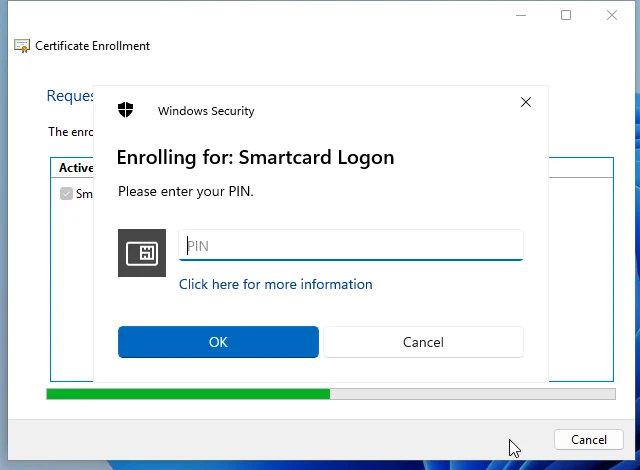
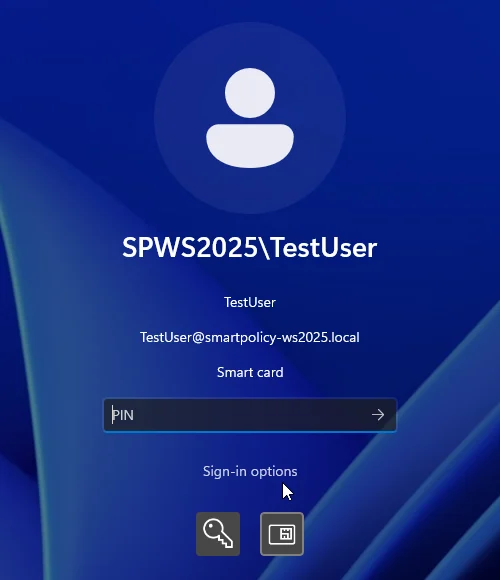
The template has to name a smart card provider (Microsoft Base Smart Card Crypto Provider or Microsoft Smart Card Key Storage Provider): without one, Windows creates the key in software, with no PIN prompt, and the card stays empty. The domain controllers need a certificate for smart card logon (Kerberos Authentication template) and the CA must be in the NTAuth store — automatic with an enterprise CA. With a third-party PKI, SmartPolicy configures the domain for smart card logon.
Local accounts: EIDAuthenticate
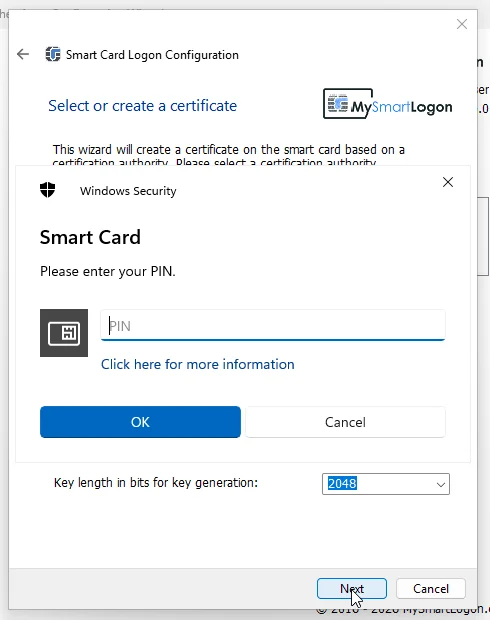
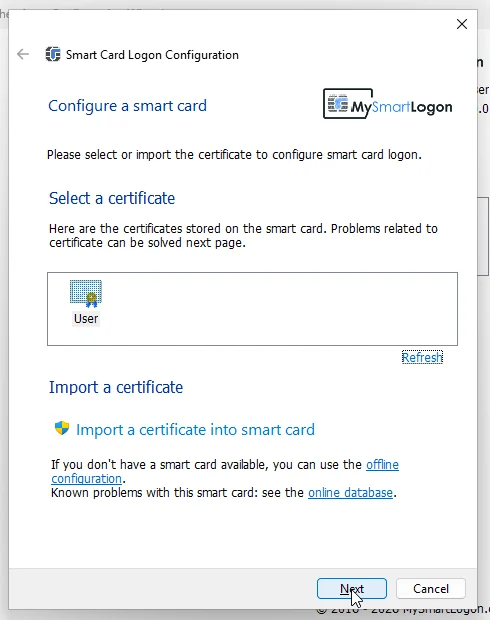
EIDAuthenticate: Associate a new certificate › Import a certificate into smart card › Create a new certification authority. The wizard creates the key and the certificate on the card, checks them and tests the logon.
Linux
Generate a key pair with OpenSC; Windows lists it as well:
$ pkcs11-tool --module /usr/lib/x86_64-linux-gnu/opensc-pkcs11.so --login --pin 123456 \
      --keypairgen --key-type rsa:2048 --label linux-key
Key pair generated:
Private Key Object; RSA
  label:      linux-key
  Access:     sensitive, always sensitive, never extractable, local

> certutil -key -csp "Microsoft Smart Card Key Storage Provider"
  linux-key
  RSA
AT_KEYEXCHANGEOn Windows 10 and later
Windows refuses to write a private key to a smart card unless the smart card KSP allows it. From an elevated command prompt:
> reg add "HKLM\SYSTEM\CurrentControlSet\Control\Cryptography\Providers\Microsoft Smart Card Key Storage Provider" /v AllowPrivateExchangeKeyImport /t REG_DWORD /d 1 /f
> reg add "HKLM\SYSTEM\CurrentControlSet\Control\Cryptography\Providers\Microsoft Smart Card Key Storage Provider" /v AllowPrivateSignatureKeyImport /t REG_DWORD /d 1 /f
> certutil -csp "Microsoft Base Smart Card Crypto Provider" -importpfx file.pfx
CertUtil: -importPFX command completed successfully.
If certutil answers NTE_NOT_SUPPORTED, the key of the PFX was created by a CNG provider and cannot be exported to the card that way (PFX files written by .NET, for example). Re-export it from a CAPI provider, or use OpenSC below.
With OpenSC, on any platform
$ pkcs15-init --auth-id 80 --pin 123456 --verify-pin -f PKCS12 --passphrase "pfx password" -S file.pfx
Importing 1 certificates:
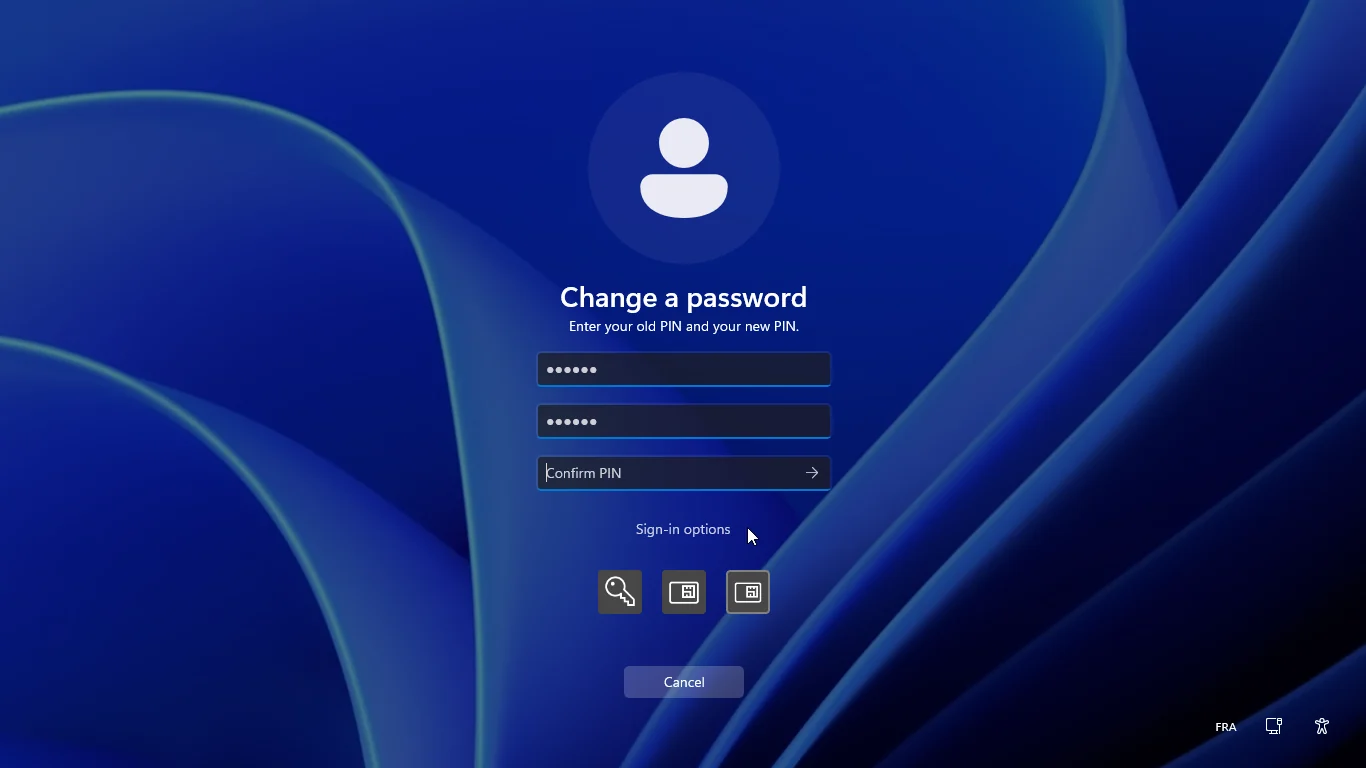
0: /CN=GIDS PFX import testOn Windows: Ctrl+Alt+Del › Change a password › Sign-in options › the smart card icon. Type the current PIN, the new PIN and its confirmation.
On Linux and macOS:
$ pkcs11-tool --module /usr/lib/x86_64-linux-gnu/opensc-pkcs11.so --login --pin 123456 --change-pin --new-pin 654321
PIN successfully changedAfter 3 wrong PINs the card is blocked. The admin key set at initialization unblocks it and sets a new PIN.
On Windows: the integrated unblock screen
- Enable the policy Computer Configuration › Administrative Templates › Windows Components › Smart Card › Allow Integrated Unblock screen to be displayed at the time of logon (registry:
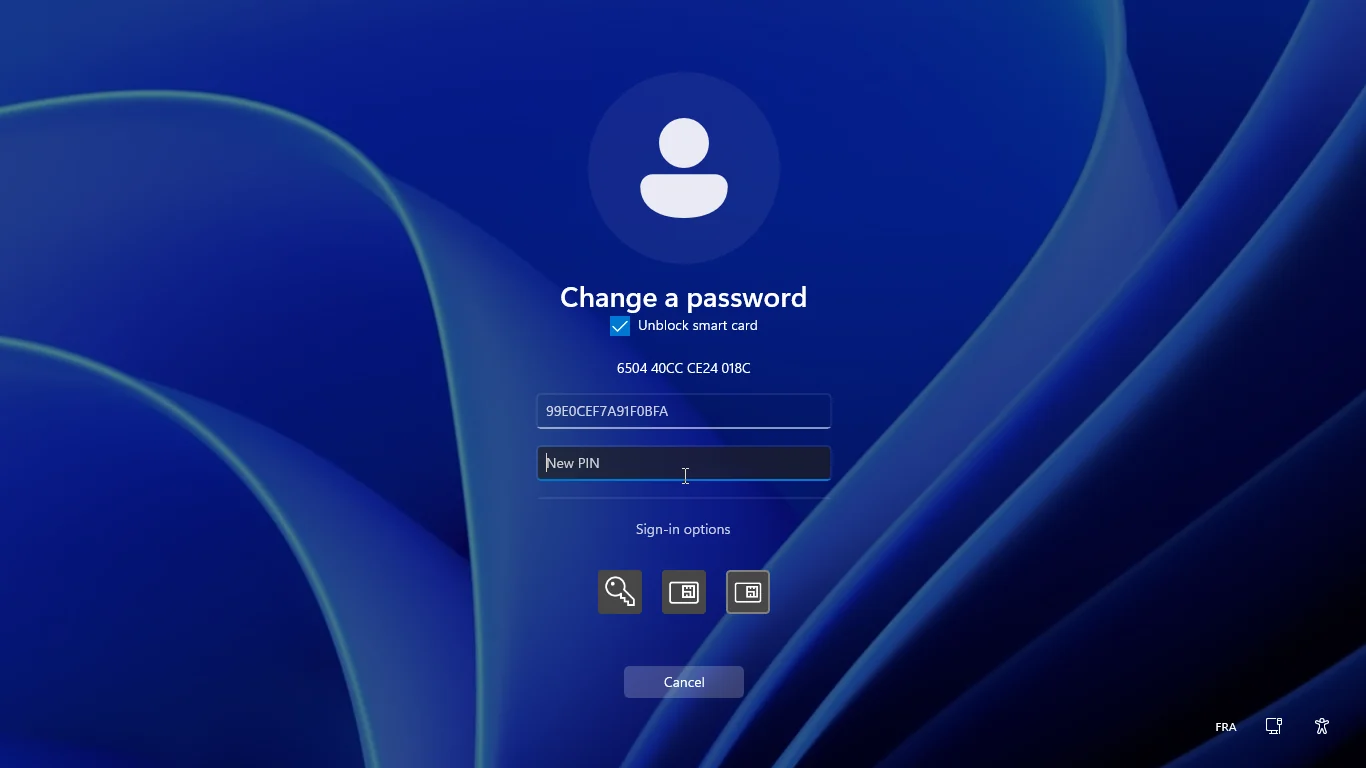
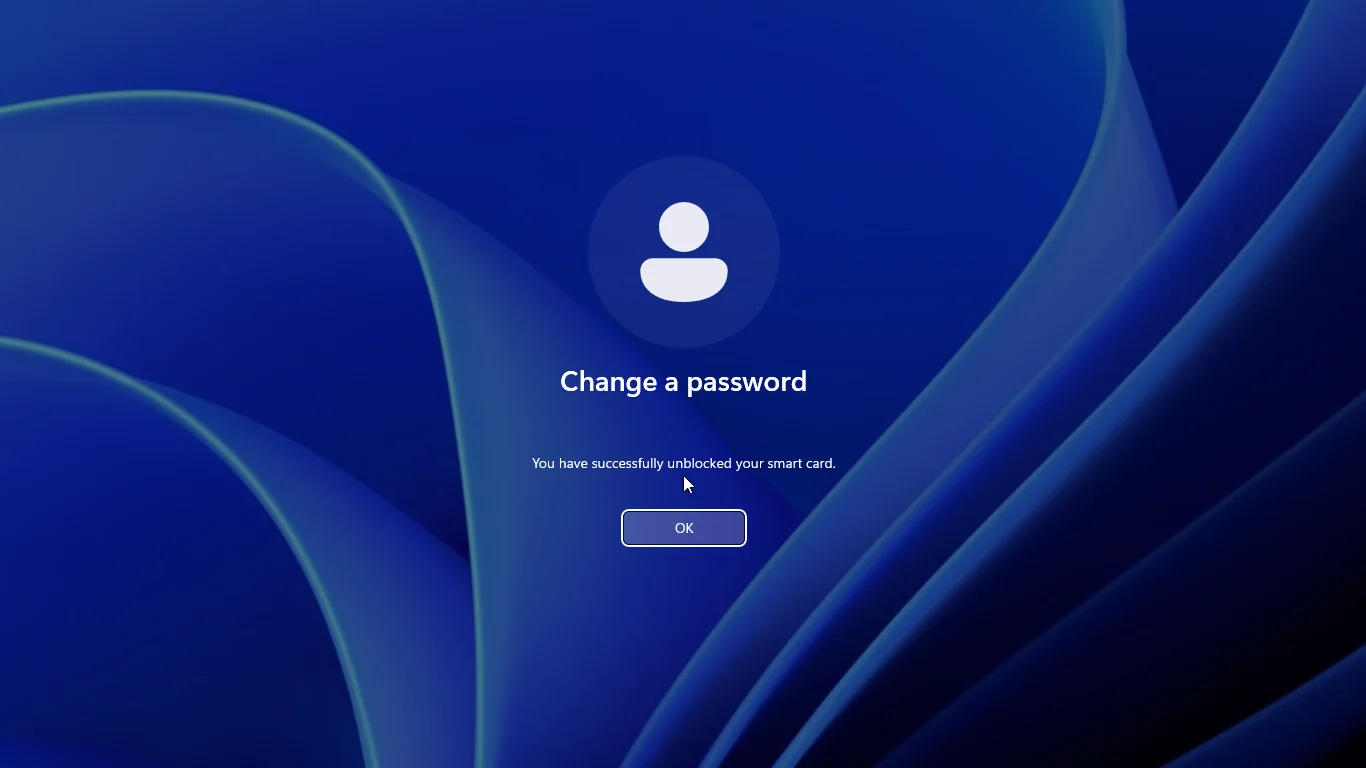
AllowIntegratedUnblock= 1 underHKLM\SOFTWARE\Policies\Microsoft\Windows\SmartCardCredentialProvider). - Ctrl+Alt+Del › Change a password › Sign-in options › the smart card icon › Unblock smart card.
- Windows shows an 8-byte challenge. The response is the challenge encrypted with the admin key (3DES-ECB): compute it with the Response Calculator, or with PowerShell below.
- Type the response, the new PIN and its confirmation.
$key = '<admin key, 48 hexadecimal characters>'
$challenge = '650440CCCE24018C'
function FromHex($h) { [byte[]]($h -split '(..)' | ? { $_ } | % { [Convert]::ToByte($_, 16) }) }
$des = [Security.Cryptography.TripleDES]::Create(); $des.Mode = 'ECB'; $des.Padding = 'None'; $des.Key = FromHex $key
-join ($des.CreateEncryptor().TransformFinalBlock((FromHex $challenge), 0, 8) | % { $_.ToString('X2') })
With OpenSC
$ gids-tool --unblock --admin-key <admin key> --pin 123456
Administrator authentication successful
Setting the new PIN
Unblock PIN done successfullyInstall opensc and pcscd (apt install opensc pcscd on Debian and Ubuntu, brew install opensc on macOS). The card is recognized as a GIDS card with no configuration:
$ opensc-tool -l
Nr.  Card  Features  Name
0    Yes             ACS CCID USB Reader 0

$ pkcs11-tool --module /usr/lib/x86_64-linux-gnu/opensc-pkcs11.so -L
Slot 0 (0x0): ACS CCID USB Reader 0
  token label        : GIDS card (UserPIN)
  token manufacturer : www.mysmartlogon.com
  token flags        : login required, token initialized, PIN initialized
SSH
Export the public key of the card, add it to ~/.ssh/authorized_keys on the server, then sign in with the card:
$ ssh-keygen -D /usr/lib/x86_64-linux-gnu/opensc-pkcs11.so
ssh-rsa AAAAB3NzaC1yc2EAAAADAQABAAABAQDR02nc…
$ ssh -I /usr/lib/x86_64-linux-gnu/opensc-pkcs11.so user@server
Enter PIN for 'GIDS card (UserPIN)':
Sign in to Ubuntu with the card (SSSD)
Ubuntu ships SSSD and its smart card PAM module: GDM switches to the card when it is inserted. For a local account, map the certificate to the account and give SSSD the CA that issued it. On Ubuntu Server or a minimal installation, install them first: sudo apt install sssd libpam-sss.
In /etc/sssd/sssd.conf (owner root, mode 600) — adapt matchrule to the subject of your certificate, one [certmap/shadowutils/<account>] section per account:
[sssd]
services = pam
domains = shadowutils

[pam]
pam_cert_auth = True

[domain/shadowutils]
id_provider = proxy
proxy_lib_name = files
auth_provider = none
local_auth_policy = only

[certmap/shadowutils/adiant]
matchrule = <SUBJECT>^CN=User$
The CA certificate that issued the card certificate, in PEM: on a Windows CA, certutil -ca.cert issuing-ca.cer; otherwise export it from the certificate store (certlm.msc › Trusted Root Certification Authorities › Export, DER). Then:
$ openssl x509 -inform der -in issuing-ca.cer -out issuing-ca.pem
$ sudo install -m 644 issuing-ca.pem /etc/sssd/pki/sssd_auth_ca_db.pem
$ sudo systemctl restart sssd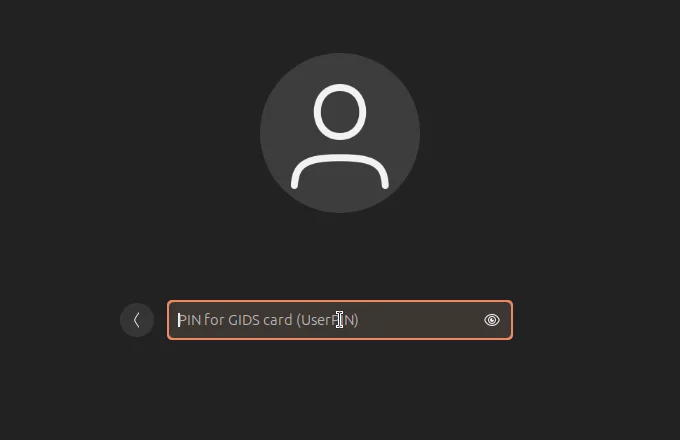
ad or ipa provider instead of shadowutils, with the same pam_cert_auth.Browsers and other applications — load the OpenSC PKCS#11 module (opensc-pkcs11.so; on macOS /Library/OpenSC/lib/opensc-pkcs11.so) as a security device. On many distributions p11-kit already registers it.
To start over — lost admin key, card given to someone else — delete the applet and install it again. Every key and certificate is erased; then initialize the card again.
$ java -jar gp.jar --uninstall GidsApplet.cap
A00000039742544659 deleted.
$ java -jar gp.jar --install GidsApplet.cap| Symptom | Cause and fix |
|---|---|
| The tool says “There is no GIDS applet on this card” | The applet is not installed, or not selectable: check with gp --list that A000000397425446590201 is SELECTABLE. |
| Windows sees the card but cannot use it | The card is not initialized (step 2). |
| “The card cannot be accessed because the maximum number of PIN entry attempts has been reached” | The PIN is blocked: step 6. |
The admin key is refused (6982, “Security status not satisfied”) | Wrong admin key. Without the right one, the only way out is a reset (step 8). |
certutil -importpfx fails with NTE_NOT_SUPPORTED | The key import policy is not set, or the PFX key comes from a CNG provider: step 4. |
| The card is used as a PIV card | A PIV applet on the same card is selected first: remove it. Windows may also have cached the card type by ATR under the Calais registry key. |
| The Ubuntu sign-in screen asks for a password although the card is inserted | GDM switches to the card when it is inserted: insert it at the sign-in screen, or press Esc to restart the sign-in; then check journalctl -u sssd for the certificate mapping and the CA. |
Status 6A84 when writing | The card memory is full: delete unused certificates, or use a card with more EEPROM. |