Checking Smart Card Health with certutil
certutil is a troubleshooting tool developed by Microsoft. It is installed by default on Windows Vista and Windows Server 2008 and later.
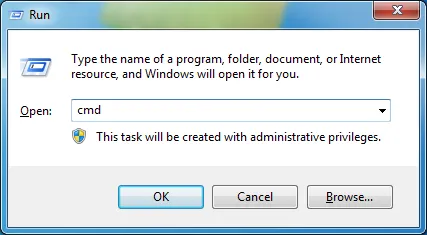
Press Windows + R, type cmd, press Enter, then run:
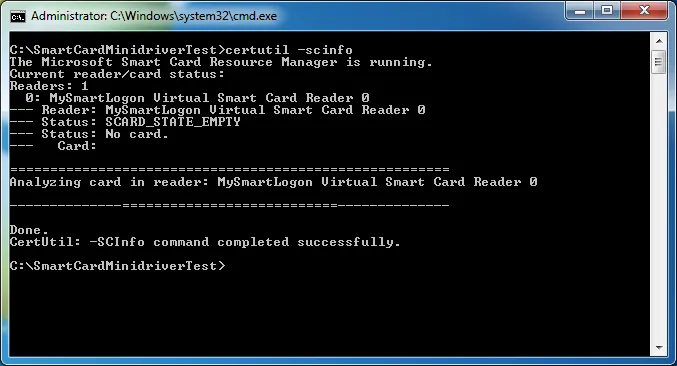
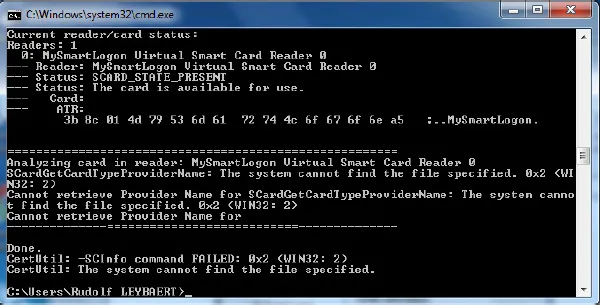
certutil -scinfo
A healthy, properly configured smart card produces output where:
- The Card field is not empty — a driver name is shown.
- The state includes
SCARD_STATE_PRESENT. - The chain validates: look for "Smart card logon: chain validates".
An empty smart card (no certificate yet) is also a healthy state
Causes
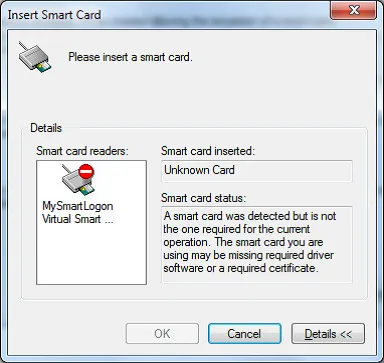
- An incompatible smart card has been inserted.
- The reader does not recognise the card.
Resolution
- Check the physical connection (ensure the card is fully inserted).
- Try the smart card in a different reader to rule out a faulty reader.
- Verify the Smart Card service is running (see below).
When the minidriver or CSP is missing, the ATR is shown but the Card line is empty and the output contains errors such as "Cannot retrieve Provider Name for <null>".
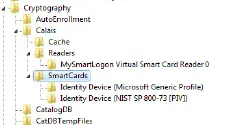
WOW6432Node entry.
Resolution
- Request the correct 64-bit driver from your smart card manufacturer.
- Use a compatible smart card.
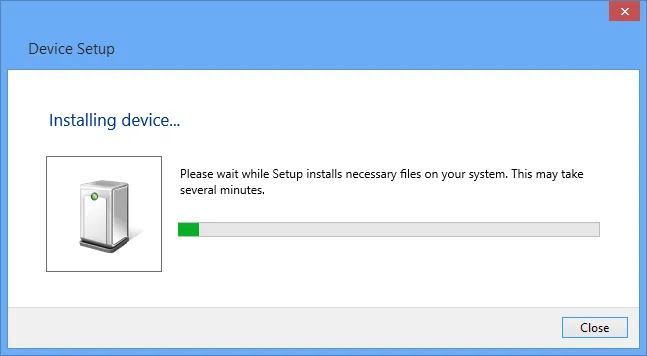
- Wait for the driver to install automatically via Windows Update, or download it manually from the manufacturer's website.
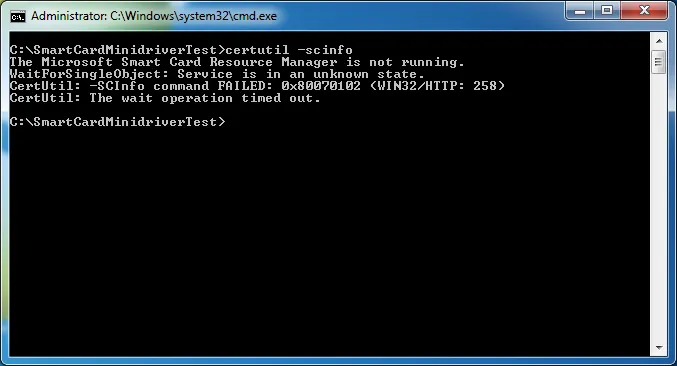
Resolution
Open Services (Administrative Tools → Services), locate the Smart Card service, set its Startup type to Automatic and start it.
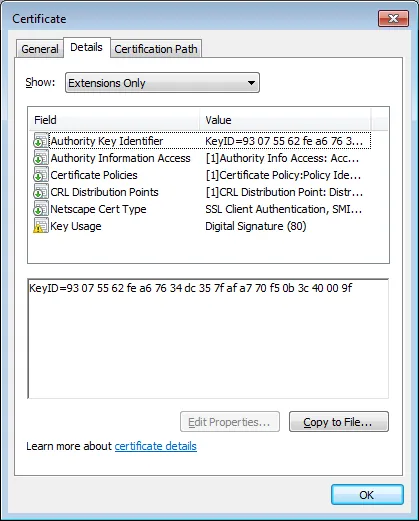
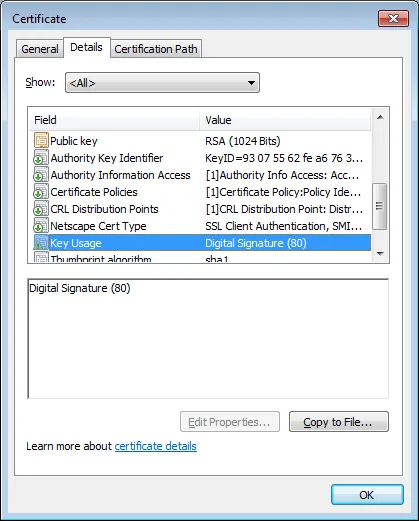
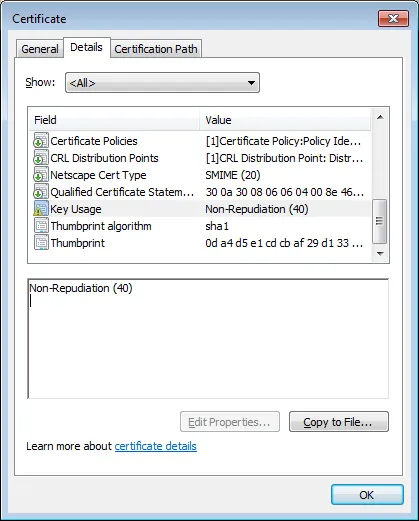
Key Usage
The Key Usage extension must contain at least one of: Key Encipherment, Data Encipherment, or Digital Signature.
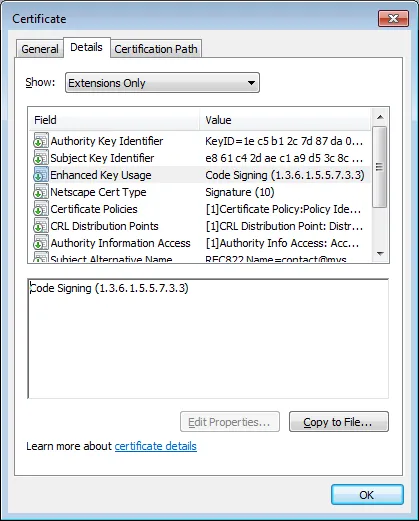
Extended Key Usage
The Extended Key Usage extension must be absent, or contain at least one of: Smart Card Logon (OID 1.3.6.1.4.1.311.20.2.2) or Client Authentication (OID 1.3.6.1.5.5.7.3.2).