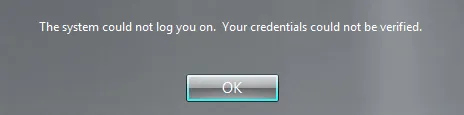
Smart Card Logon Error Messages
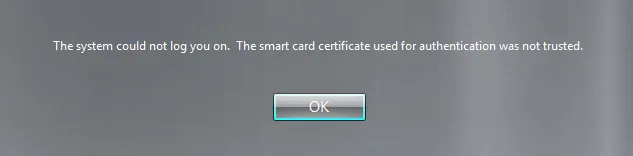
Cause
The certificate presented is not trusted by the client or the domain controller. This is typically caused by:
- Missing root or intermediate certificates in the computer store and/or the NTAuth store.
- The system was unable to verify whether the certificate has been revoked.
- No CRL Distribution Point (CDP) is configured in the certificate, or the domain controller could not reach it.
Diagnostic — Check that the smart card certificate is trusted
Run certutil –scinfo and look for "Smart card logon: chain validates".
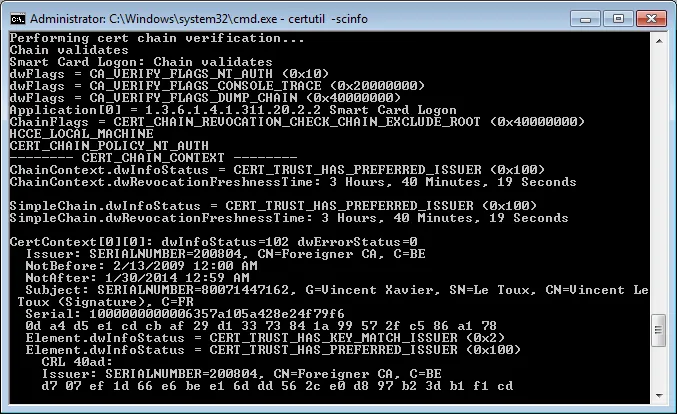
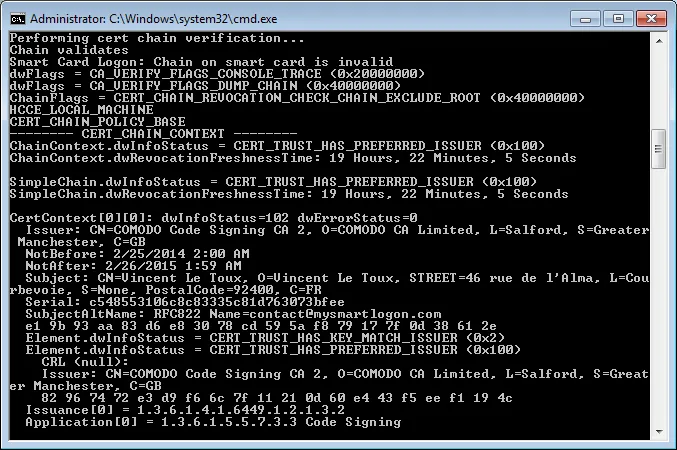
If the test fails, the output shows: "smart card logon: chain on smart card is invalid".
Diagnostic — Verify trust in depth
- Open the certificate file on the client computer.
- Open the Certification Path tab and note all root and intermediate certificates.
- Open the computer certificate store (
mmc→ Certificates snap-in → Computer account — notcertmgr.msc). - Verify the root certificate is in Trusted Root Certification Authorities.
- Verify all intermediate certificates are in Intermediate Certification Authorities.
- Repeat the same checks on the domain controller used for authentication (find it with
echo %LOGONSERVER%). - Check that all intermediate and root certificates are in the NTAuth store:
certutil -viewstore -enterprise NTAuth
Resolution
- Add missing certificates to the relevant stores via GPO or directly.
- If a root or intermediate CA certificate is missing from the NTAuth store, add it with:
certutil -dspublish -f [cert_file] NtAuthCA
gpupdate /force on both the domain controller and the client.
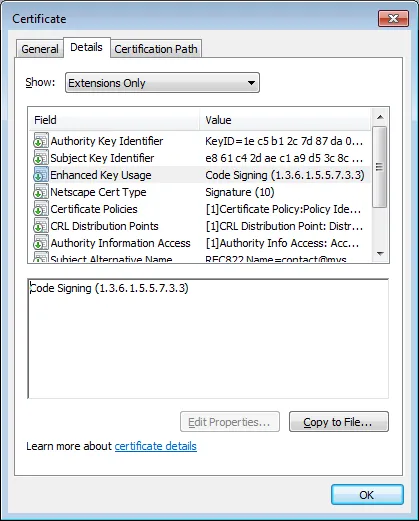
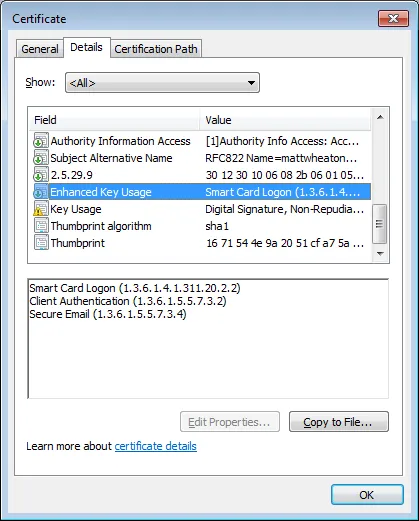
Open the certificate properties and locate the Key Usage extension. It must contain at least one of: Key Encipherment, Data Encipherment, or Digital Signature.
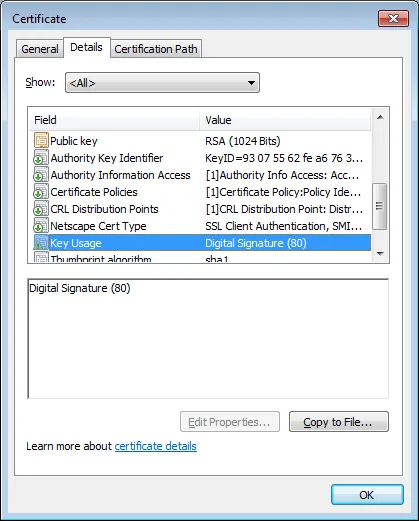
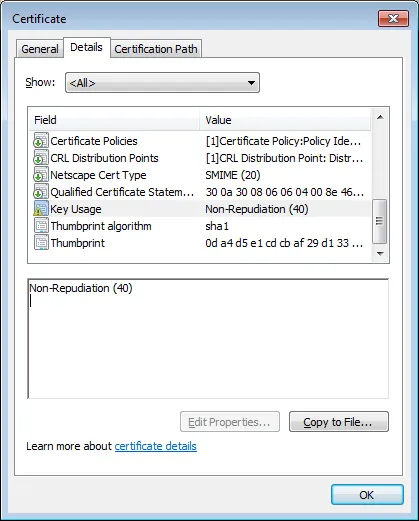
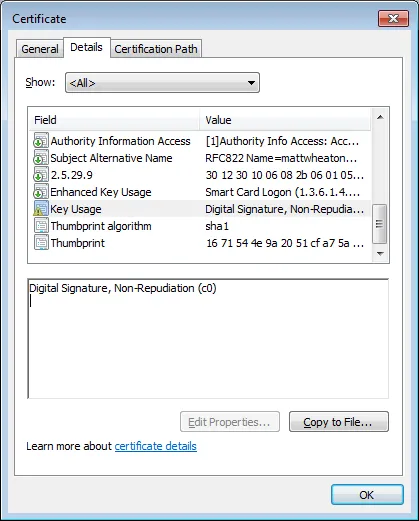
The Extended Key Usage extension must be absent, or contain at least one of:
- Smart Card Logon (OID
1.3.6.1.4.1.311.20.2.2) - Client Authentication (OID
1.3.6.1.5.5.7.3.2)
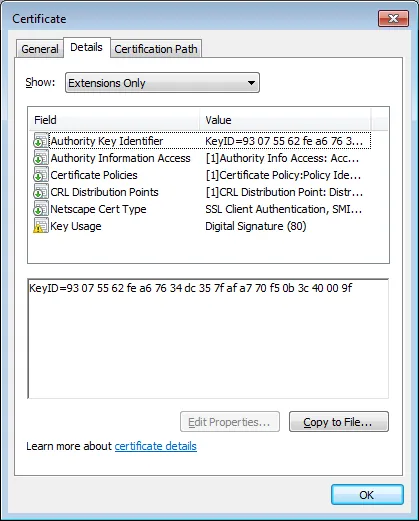
Cause
- The domain controller cannot find the account associated with the smart card.
- The certificate is associated with more than one account.
- There is a mapping issue (unrecognised format or KB5014754 change).
Diagnostic — System Event Log
Check the System Event Log for Kerberos errors. An event reading "The Distinguished Name in the subject field of your smartcard logon certificate does not contain enough information to locate the appropriate domain" indicates no mapping was found.

Diagnostic — Check for duplicate mappings
Run ADExplorer.exe, go to Search, and search for the attribute altSecurityIdentities with the relation Not Empty. Check for duplicate entries across multiple accounts.
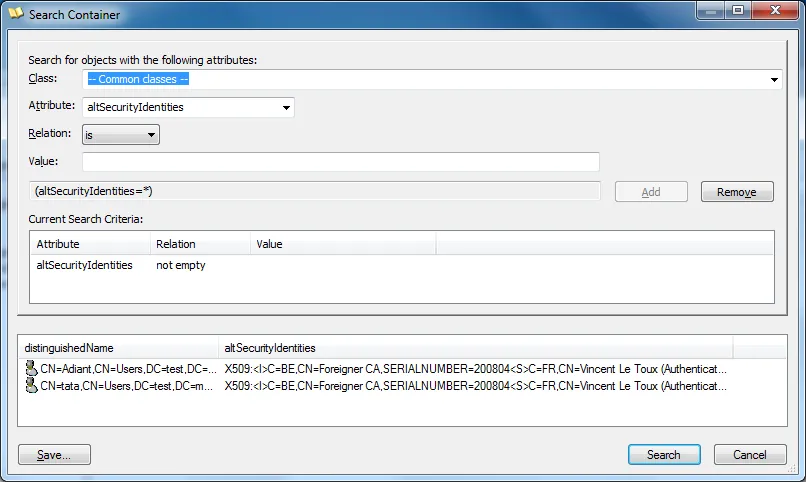
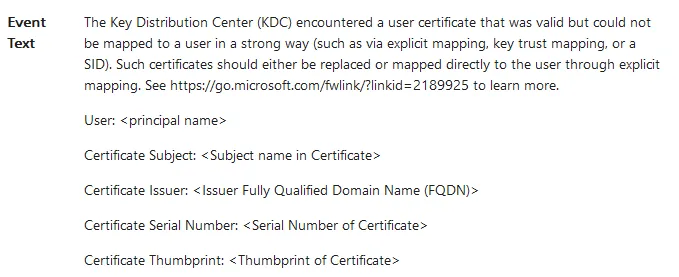
<SR>), the serial number bytes are written in reverse order compared to what the certificate viewer shows.
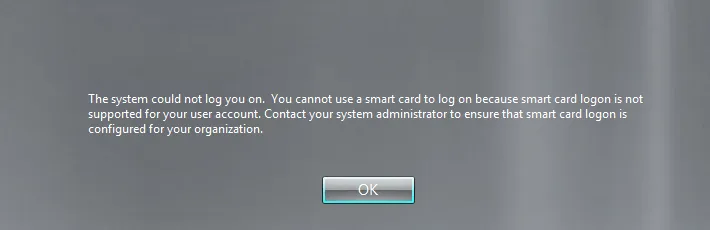
Cause
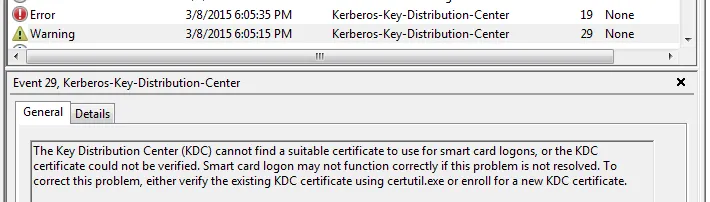
The domain controller has no certificate issued by the Enterprise PKI in its computer certificate store. Confirmed by Event ID 19 or 29 in the System log:
Resolution — Option A: force GPO re-application
gpupdate /force
Resolution — Option B: manually request a KDC certificate
- On the domain controller, run
mmc. - Go to File → Add/Remove Snap-in → Certificates → Computer account.
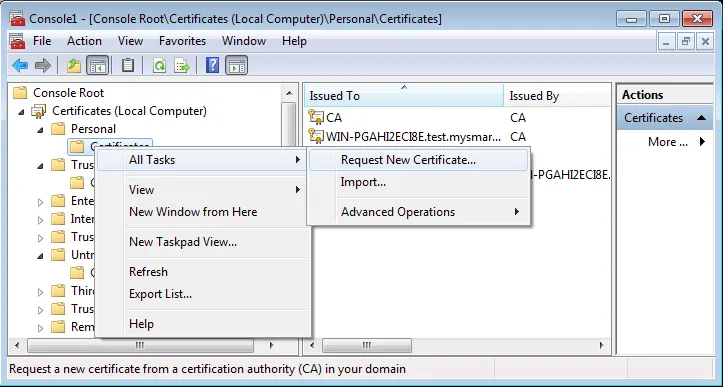
- Expand Certificates (Local Computer) → Personal.
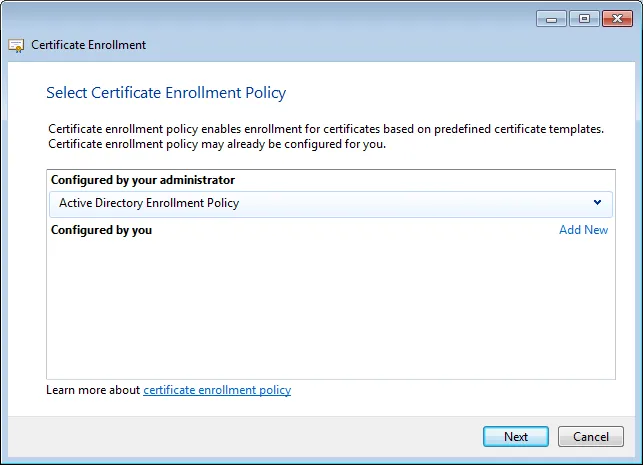
- Right-click Personal → All Tasks → Request New Certificate.
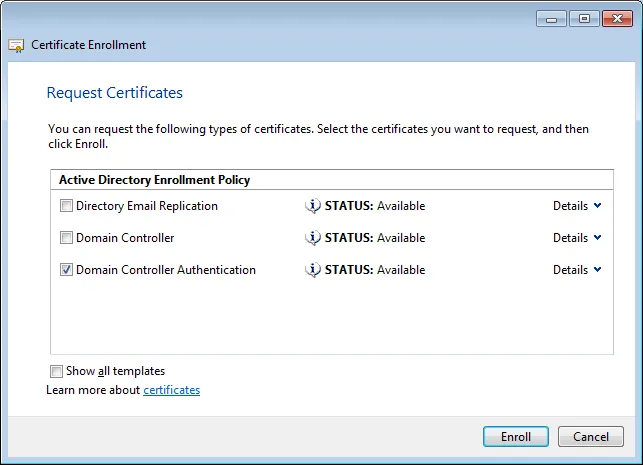
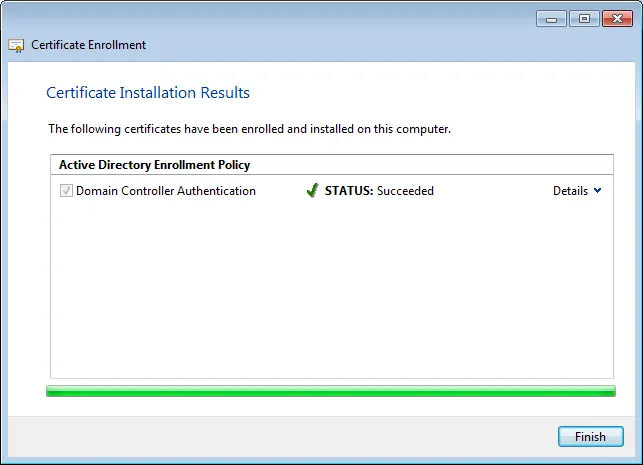
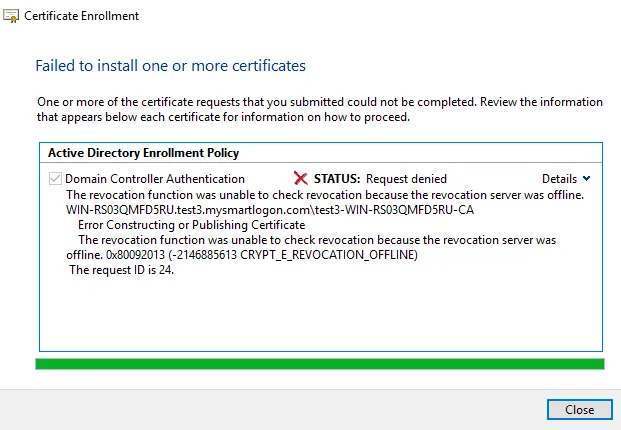
- Select Domain Controller Authentication and click Enroll.
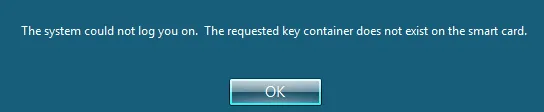
Also reported as: "The requested certificate does not exist on the smart card" or "The requested keyset does not exist on the smart card".
Cause
A problem with the smart card driver — most commonly seen when connecting via Terminal Server.
Resolution
Verify that the smart card driver is installed on both the server and the client: run certutil -scinfo on both machines.
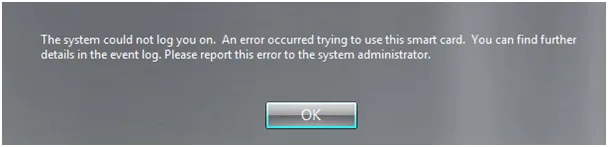
Additional symptom
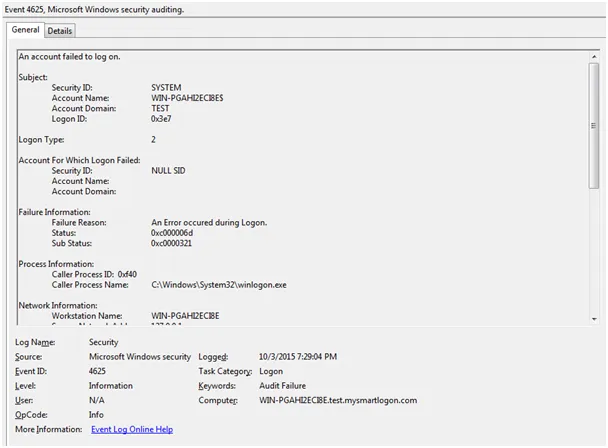
Event 4625 — Logon failure with status 0xC000006D / sub-status 0xC0000321.

Resolution
Contact your smart card manufacturer. For detailed diagnostics, run API Monitor and attach it to lsass.exe.
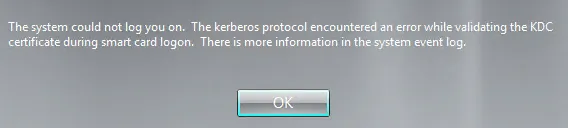
Cause
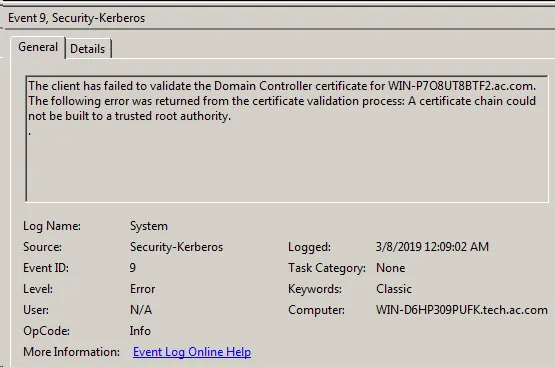
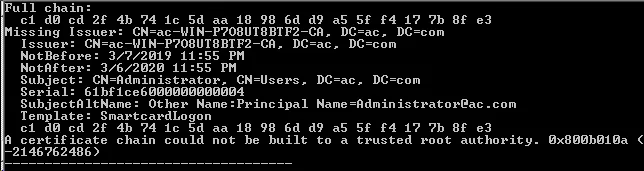
The KDC certificate chain cannot be built on the connecting client. Confirmed by Event ID 9 (Security-Kerberos).
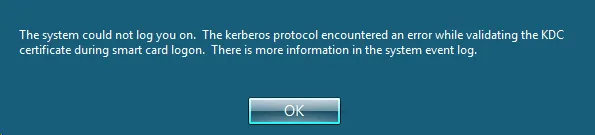
Resolution
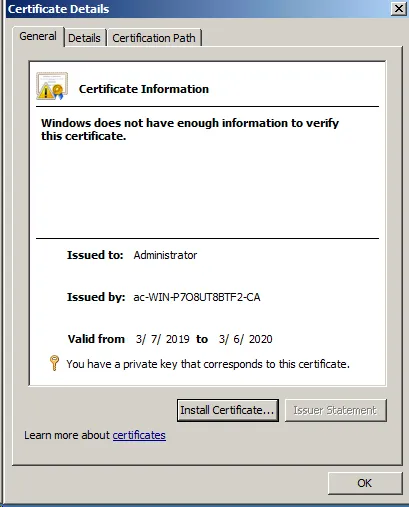
- On a computer where logon works, run
certutil -scinfoand identify the root certificate. - Copy that root certificate to the failing client's computer certificate store (
mmc→ Certificates → Local Computer). - Run
gpupdate /forceon the client.
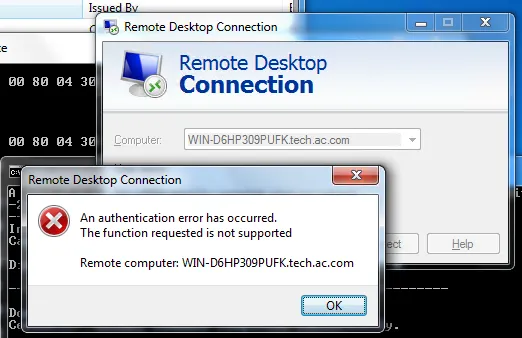
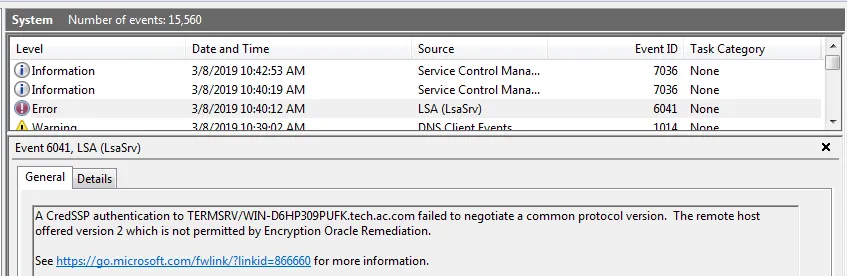
This error is related to a CredSSP vulnerability patch. Refer to Microsoft KB4093492 — CredSSP updates for CVE-2018-0886.
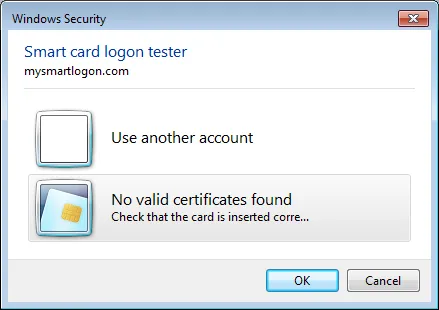
Causes
- Only UPN mapping is allowed and the certificate does not match.
- Certificate Key Usage or EKU attributes are incompatible.
- Connecting via Terminal Server from a computer outside the domain.
- The certificate chain is not trusted.
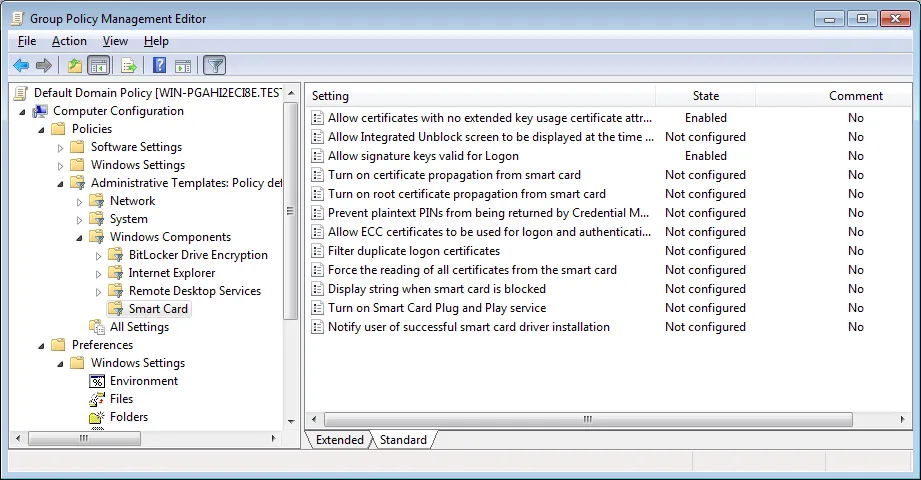
Resolution — Relax GPO restrictions
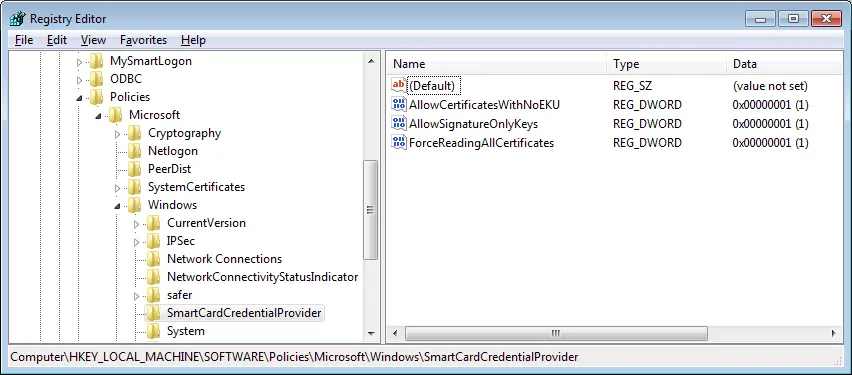
Windows Registry Editor Version 5.00

[HKEY_LOCAL_MACHINE\SOFTWARE\Policies\Microsoft\Windows\SmartCardCredentialProvider]
"AllowCertificatesWithNoEKU"=dword:00000001
"AllowSignatureOnlyKeys"=dword:00000001
"ForceReadingAllCertificates"=dword:00000001
Resolution — Terminal Server without NLA
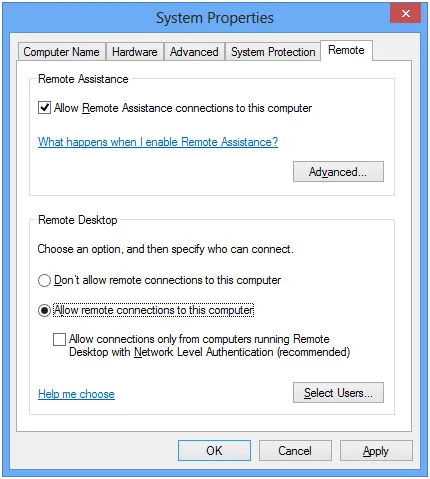
On the server, deselect "Allow connections only from computers running Remote Desktop with Network Level Authentication".
In the .rdp file for the connection, add:
EnableCredSspSupport:i:0